Key takeaways
- Routers for setting up two routers on one internet connection, with bridge and access point modes, DHCP planning, placement and channel tips for home use.
What's inside
- How a Two-Router Setup Actually Works
- Plan Before You Plug Anything In
- What to Look For in a Router for This Job
- 1. TP-Link Archer AX21 — Simple Main or Second Router With EasyMesh
- 2. TP-Link Archer AX55 — Stronger Primary Router With More Capacity
- Step-by-Step: Putting the Pair Together
- Common Problems and Their Causes
- Verdict
As an Amazon Associate I earn from qualifying purchases. This post may contain affiliate links at no extra cost to you.
As an Amazon Associate we earn from qualifying purchases.
Disclosure: This article contains affiliate links. If you buy through these links, we may earn a commission at no additional cost to you.

Running two routers on one internet connection is a practical answer to a familiar problem: one router sits where the modem or fibre terminal enters the house, and that spot is rarely where you need strong wireless coverage. A workshop at the end of the building, a home office upstairs, or a living room separated by thick walls can all end up with a weak signal even though the internet service itself is fine. Adding a second router, set up correctly, extends coverage and gives wired ports where you need them, without paying for a second internet line.
Reading note: the keyword for this guide keeps the spelling “concetion” in its slug. In plain language it means connection — one internet connection shared by two routers. This article treats the products as Wi-Fi routers first and setup hardware second. Every router below can work as the main router at the modem, and each can also be placed as the second unit in an access point or mesh-style arrangement, depending on the mode its firmware offers. That flexibility matters more than raw speed for this use, because a two-router setup fails when both units try to do the same job at once.
This guide explains the three working layouts, the settings that must differ between the two units, and the mistakes that cause double address translation, address conflicts, and roaming problems. It then looks at two verified Wi-Fi 6 routers that suit different roles in the pair. You will not need both models — many households pair a new router as the main unit with an existing router as the second — but each pick below is capable on either side of the link, which makes planning simpler.
How a Two-Router Setup Actually Works
An internet connection has one public address. Only one router in the house should manage that address, hand out private addresses to devices, and translate between the private network and the internet. That unit is the primary router, and it connects directly to the modem or fibre terminal. The second router must be told, in one way or another, not to compete for that job.
There are three common ways to give the second router a clear, subordinate role.
The first is access point mode. The second router stops routing, turns off its own address assignment service, and simply provides wireless access and wired ports as an extension of the primary network. Devices keep addresses from the primary router, they see each other across both units, and file sharing, printers, and smart home hubs keep working as if there were one network. For most homes this is the layout to choose.
The second is a mesh or EasyMesh-style pairing, where compatible routers form one managed system. The primary unit controls the network and the second unit extends it, with settings copied across automatically. TP-Link routers with EasyMesh support, including both picks below, are built for this kind of pairing with other compatible units. Roaming is usually smoother in this layout because the system coordinates channel and client steering in one place.
The third is a separate routed subnet, sometimes called a cascaded setup. The second router keeps routing and runs its own private network behind the first. That can be useful to isolate a workshop network or a guest area from the main household network, but it creates double translation, which can break some games, video calls, and remote access tools. Choose it deliberately for isolation, not by accident because a setting was left on.
Plan Before You Plug Anything In
Start with a short plan on paper. Write down which router is primary, where each unit will sit, and how the two will connect. A wired Ethernet run between the units is the strongest link by a wide margin, because the second router then uses its full wireless capacity for devices instead of spending part of it talking back to the first router. If a cable run is impossible, place the second unit where it still receives a solid signal from the first, typically partway toward the weak area rather than inside the weak area itself.
Next, decide addresses. The primary router keeps its usual address and remains the only unit assigning addresses. In access point mode most routers handle this automatically once the mode is selected, but check anyway after setup by opening the second unit’s settings and confirming its address assignment service is off. Give the second router a fixed management address inside the primary network so you can always reach its settings page later.
Then decide names and channels. Using the same network name and password on both units lets devices move between them without manual switching, although older devices sometimes cling to a weak signal. Using different names gives you manual control at the cost of convenience. For channels, set the two units to different, non-overlapping channels on the 2.4 GHz band and different wide channels on the 5 GHz band where possible, so the two radios are not competing for the same airtime in the overlap zone.
Finally, update firmware on both units before you start, connect them in their final positions, and change one setting at a time. Two-router problems are much easier to undo when you know which change came last.
What to Look For in a Router for This Job
Access point and mesh modes come first. A router that can switch cleanly into access point mode, or join a mesh system, saves hours of manual configuration. Gigabit Ethernet ports come next, because the link between the routers and any wired devices in the far room will be limited by the slowest port in the chain. Dual-band Wi-Fi 6 is a strong baseline: the 5 GHz band carries fast, nearby traffic, the 2.4 GHz band reaches farther and serves smart home devices, and Wi-Fi 6 features such as OFDMA help when many small devices share the network.
Antennas and placement flexibility matter in the far location. External antennas that can be angled help aim coverage along a hallway or across an open workshop. App-based setup helps too, because you will likely stand in the far room with a phone while configuring the second unit, not at a desk with a laptop.
Security support should be current. Look for WPA3 alongside WPA2, automatic firmware updates where available, and a guest network option so visitors do not need the main password. None of these features is glamorous, but together they decide whether a two-router setup stays reliable for years or needs constant attention.
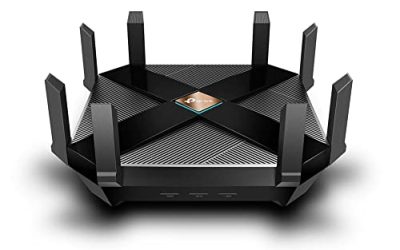
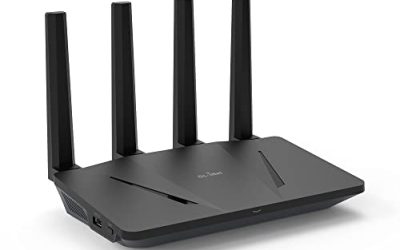
1. TP-Link Archer AX21 — Simple Main or Second Router With EasyMesh
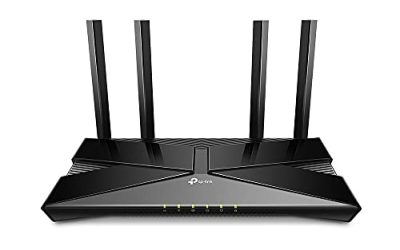
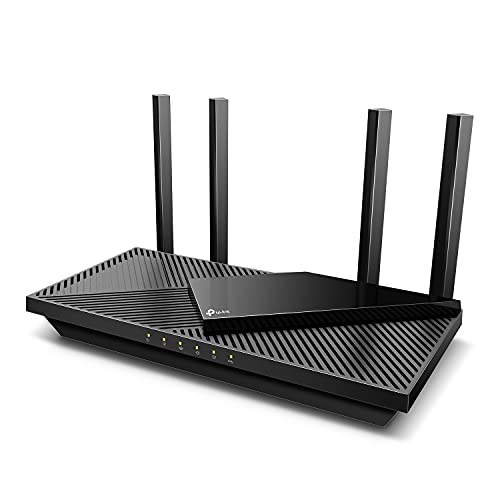
The TP-Link Archer AX21 is a dual-band Wi-Fi 6 router with an AX1800 speed class, built around the features a two-router home actually uses. Its 5 GHz band handles fast local traffic such as laptops and streaming boxes near the unit, while its 2.4 GHz band carries the longer-range and smart home load. Four external antennas give it useful placement flexibility for a unit that may end up on a shelf in a hallway, office, or workshop.
- Model: TP-Link Archer AX21
- Link: https://www.amazon.com/dp/B08H8ZLKKK
- Wireless standard: Wi-Fi 6, dual-band
- Speed class: AX1800
- Ethernet: Gigabit ports
- Mesh and modes: EasyMesh compatible, works with Alexa for voice control of basic functions
- Included in the box listing: router, power adapter, Ethernet cable, and installation guidance
For the primary role, the AX21 connects to the modem, runs the network, and assigns addresses for the whole house. Its setup through the TP-Link Tether app is straightforward, and the gigabit ports support wired devices such as a desktop computer, a network printer, or a smart home hub alongside the link to the second router.
For the second role, EasyMesh compatibility is the headline. Paired with another EasyMesh unit, the AX21 can join a managed extended network rather than acting as an isolated island. Used in access point style arrangements, it provides a clean extension point: place it at the far end of an Ethernet run, give it the same network name, and devices in that area gain both wireless coverage and nearby wired ports.
Who should choose it: households that want an uncomplicated Wi-Fi 6 unit that can start as the only router and later become either half of a pair. It suits apartments and medium homes where the second location is a single room or floor, and where simple app management matters more than advanced traffic controls.
Limits to keep in mind: as an AX1800 model it is a step below the AX3000 class for very busy networks, and homes with many simultaneous high-bandwidth users on both units should consider the stronger pick below as the primary router while keeping a unit like this at the edge.
2. TP-Link Archer AX55 — Stronger Primary Router With More Capacity
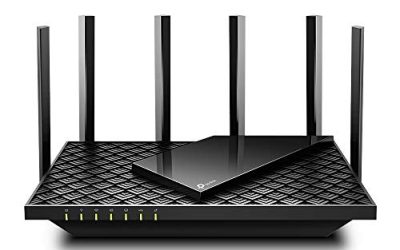
The TP-Link Archer AX55 is a dual-band Wi-Fi 6 router in the AX3000 class, with 2402 Mbps available on the 5 GHz band and 574 Mbps on the 2.4 GHz band according to its product information. It carries 512 MB of memory, four antennas, five ports in total including USB 3.0, and TP-Link HomeShield network protection features. For a two-router setup, that extra capacity makes it the natural primary unit: the router at the modem does the address work for every device on both units, and headroom there benefits the whole network.
- Model: TP-Link Archer AX55
- Link: https://www.amazon.com/dp/B09G5W9R6R
- Wireless standard: Wi-Fi 6, dual-band, 802.11ax with earlier standards supported
- Speed class: AX3000, with a listed data transfer rate of 2976 Mbps combined
- Ports: five ports, LAN bandwidth 10/100/1000 Mbps, plus USB 3.0
- Features: OFDMA, MU-MIMO, guest mode, QoS, VPN client and server support, WPA3 alongside WPA2 options
- Control: app control through TP-Link tools
- Included in the box listing: Archer AX55 router, power adapter, RJ45 Ethernet cable, and quick installation guide
As the primary router, the AX55 gives the second unit a stable base. OFDMA and MU-MIMO help it serve many devices at once, which matters when the access point at the far end funnels a whole room of devices back through this one unit. The USB 3.0 port adds shared storage options on the main network, and VPN client and server support is useful for households that want the whole network, including devices behind the second router, to use a single configured connection.
As the second router, the AX55 is more than most edge locations need, but it makes sense where the far area is itself busy — a home office with video calls, a workshop with several connected tools and a computer, or a family room with a wired television and games console. EasyMesh compatibility again allows a managed pairing with compatible units, and its stronger radios help if the backhaul link between units must be wireless for part of the distance.
Who should choose it: larger or busier homes designating a clear primary router, and anyone planning to keep the pair for a long service life. Put the AX55 at the modem and a simpler compatible unit at the edge, and the division of labour matches each unit’s strengths.
Limits to keep in mind: its capabilities are partly wasted in a pure access point role in a quiet corner, so budget-minded setups should place it at the centre of the network where its processing and memory are actually used.
Step-by-Step: Putting the Pair Together
First, set up the primary router alone. Connect it to the modem or fibre terminal, complete its setup, update its firmware, set a strong admin password and wireless password, and confirm that devices connect and reach the internet through it. Do not add the second router until this base network is stable.
Second, connect the second router with an Ethernet cable from one of its ports to a LAN port on the primary router, following the port guidance for access point or EasyMesh mode in that model’s guide. Power it on in its intended location if the cable run allows, or configure it nearby and then move it, keeping the same cabling order.
Third, open the second router’s settings and select access point mode or start the EasyMesh pairing process. Confirm that its address assignment service is off, that it has received or been given an address inside the primary network, and that its firmware is current.
Fourth, align the wireless settings. Match the network name and password if you want a single household network, or set a clearly different name if you prefer manual control. Separate the channels between the two units as described earlier, and keep the security mode consistent across both.
Fifth, test methodically. Walk the house with a phone and check the signal in the rooms that prompted the project. Connect a laptop through the second router, both wirelessly and by cable, and confirm it can reach the internet, the primary router’s settings page, and shared devices such as a printer. Make one adjustment at a time if roaming or speed disappoints — placement changes of even a short distance can matter more than any setting.
Common Problems and Their Causes
Double address assignment is the classic failure: both routers hand out addresses, devices end up on conflicting networks, and shared devices vanish. The fix is always the same — only the primary assigns addresses. An address conflict happens when the second router keeps a default management address that matches the primary; giving it a distinct fixed address prevents that. Poor roaming usually comes from mismatched security settings or identical channels rather than from the network names themselves. Slow speeds at the second unit usually trace back to a wireless backhaul placed too far away, or to a cable that limits the link, so check the wired path before changing wireless settings.
Verdict
For most homes, choose access point mode or an EasyMesh pairing, one primary router, and a wired link between the units whenever possible. The Archer AX21 suits the simpler half of the pair and smaller homes, while the Archer AX55 earns the primary position in busier households with its AX3000 capacity, memory, ports, and traffic features. Together or mixed with a compatible existing router, they show the real lesson of this setup: the second router adds coverage, but clear roles are what make one connection feel like one network.
Related guides
More from Amazon
Programs that pair well with the guide above. Offers and eligibility are set by Amazon and may change.
A free business account with business pricing and bulk-buying tools for work, shop or home office.
Create a business accountFree shipping on eligible items, Prime Video and more. Eligible new members can start with a free trial.
Start a Prime free trialAudiobooks and podcasts to listen to on the go. Eligible new members can start with a free trial.
Try Audible freeAd-free music streaming. Eligible new subscribers can start with a free trial.
Try Music Unlimited freeAs an Amazon Associate we earn from qualifying purchases.