Key takeaways
- Compare the best wireless routers at Walmart shortlist with one verified WiFi 6E tri-band pick, covering bands, ports, placement, security and setup checks.
What's inside
As an Amazon Associate I earn from qualifying purchases. This post may contain affiliate links at no extra cost to you.
As an Amazon Associate we earn from qualifying purchases.
A wireless router sits at the centre of a home network, and when it is undersized for the house, every room feels the problem at once. Video calls soften and break up in the back bedroom, a workshop laptop drops its connection just as a file is moving, and the television in the living room buffers while someone else is only trying to load a recipe. Replacing an ageing router is therefore less about chasing the highest headline speed on a box and more about matching three things to the home in front of you: the speed of the internet plan coming into the building, the size and construction of the space the signal has to cover, and the number of devices that now expect to be connected at the same time.
That last figure surprises most households. A family home can now carry several phones, tablets, consoles, smart speakers, doorbells, cameras and the small computers that run a workshop or home office. Together they keep the router busy all day, and an older router can struggle simply keeping track of them all. A modern router handles that crowd more calmly, divides traffic across separate bands, and gives the owner clearer tools for deciding which activity matters most when the connection is busy.
This guide takes a deliberately narrow approach. Rather than padding the page with models that could not be confirmed, it presents one wireless router verified on Amazon US, with its model name and ASIN checked against the product information on its listing, and then covers how to read the specifications, judge coverage for your own floor plan, and place and set up the unit well.
Disclosure: This article contains affiliate links. If you buy through these links, we may earn a commission at no additional cost to you.
How to Choose a Wireless Router
Start With the Internet Plan Coming Into the Home
The router cannot make an internet connection faster than the plan that feeds it. Its job is to distribute what arrives, without becoming the bottleneck itself. So the first figure to know is the download and upload speed of your current plan, which is printed on the bill and in the provider account pages. If the plan is a modest one, a mid range router already has headroom to spare, and money is better spent on placement and coverage. If the plan is a gigabit service, the router needs wireless capacity and wired ports that do not cap that speed before it reaches your devices. Checking the plan first also prevents a common disappointment, where a new router is blamed for a slow connection that was always limited at the wall.
Understand Bands: 2.4 GHz, 5 GHz and 6 GHz
Routers divide their wireless work across frequency bands, and each band behaves differently in a house. The 2.4 GHz band travels the farthest and passes through walls most readily, which makes it the band that reaches the garage, the garden room and the far corner of an upstairs floor. Its weakness is congestion and lower speed, because many neighbouring networks and household appliances share the same space. The 5 GHz band carries much faster traffic but fades sooner through brick, plaster and floors, so it suits devices in the same room or the next one along. The 6 GHz band, available on WiFi 6E routers such as the pick in this guide, adds a wide, comparatively empty stretch of spectrum for newer phones, laptops and consoles that support it. A tri-band router can keep older, distant devices on 2.4 GHz, everyday work on 5 GHz, and the newest, most demanding devices on 6 GHz, so they are not all queuing in the same lane.
Read the Speed Class Without Being Misled by It
Router names carry a class figure, formed by adding the maximum theoretical rates of all the bands together. An AXE5400 router, for example, combines rates of up to 2,402 Mbps on the 6 GHz band, up to 2,402 Mbps on the 5 GHz band and up to 574 Mbps on the 2.4 GHz band. No single device receives that combined total, because one device connects on one band at a time, and real rooms, walls and distance reduce any theoretical figure considerably. Treat the class as a rough guide to the tier of the hardware rather than a promise about what a speed check will show in the kitchen. What matters in practice is that the band your main devices use has enough capacity for the plan you pay for, with room left over for the rest of the household.
Count the Wired Ports, Not Just the Wireless
Wireless gets the attention, but wired connections still do the steadiest work in many homes. A desktop computer, a network storage drive, a television used for long film evenings and a games console all behave more predictably on an Ethernet cable than on wireless, and every device moved onto a cable frees wireless capacity for the devices that cannot be cabled. When comparing routers, count the LAN ports, check their speed, and think about where the router will live relative to the equipment you would like to plug in. A router with too few ports can be paired with a small network switch later, but it is simpler to choose enough ports at the start. Also check the WAN port, the socket that connects to the modem or fibre terminal, since that single port sets the ceiling for the whole house.
Plan Coverage Around the Building, Not the Box Claim
Coverage figures on packaging describe open, favourable conditions that few houses match. Brick and stone walls, foil backed insulation, metal shelving, mirrors, aquariums and underfloor heating all weaken a signal, and a router placed in a corner by the front door has to fight through the whole building to reach the back. Before buying, walk the house and note where the connection currently fails: the workshop at the end of the garden, the converted loft, the bedroom above the garage. If the dead spots are simply far from a sensibly placed router, a stronger single router may solve them. If the home is long, split across several floors, or built from dense materials, a router that supports a mesh system lets you add a companion unit later instead of replacing everything. The pick below supports OneMesh, which is TP-Link’s route to extending coverage with compatible equipment while keeping one network name.
Security and Controls Worth Having
A router is also the gatekeeper of the home network, so its security features deserve the same attention as its speed. Look for WPA3, the current wireless encryption standard, which the router in this guide supports alongside earlier standards for older devices. A guest network is worth switching on for visitors and for smart home gadgets you would rather keep separate from the computers that hold family files and work documents. Parental controls and quality of service settings, both present on the pick below, let a household prioritise a work call over a background download and set sensible boundaries on children’s devices without policing every connection by hand. Finally, choose a router whose maker still publishes firmware updates, and turn on automatic updating where the option exists, because the router can only guard the network if its own software is current.
The Verified Pick
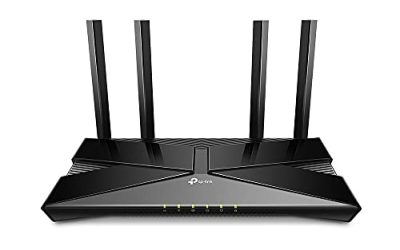
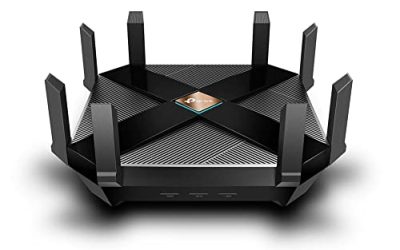
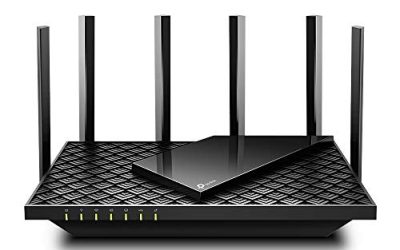
TP-Link Archer AXE75 AXE5400 Tri-Band WiFi 6E Router — ASIN B0B3SQK74L

The TP-Link Archer AXE75 is a tri-band WiFi 6E router in the AXE5400 class, and it is the one model in this guide whose listing was confirmed on Amazon US, with the ASIN B0B3SQK74L shown in the product information and the model name Archer AXE75 stated on the same listing. Its three bands divide the household the way the previous section described: up to 2,402 Mbps on the new 6 GHz band for WiFi 6E devices, up to 2,402 Mbps on 5 GHz for the bulk of everyday traffic, and up to 574 Mbps on 2.4 GHz for range and for the small smart home devices that still use that band alone. Support for 160 MHz channels on the faster bands gives compatible laptops and phones a wider lane when they are close enough to use it.
View the TP-Link Archer AXE75 on Amazon
Beyond the headline class, the listing records details that matter in daily use. The router carries 512 MB of memory, runs from a 12 volt supply, and its LAN port bandwidth is listed at 1000 Mbps, which suits gigabit wired devices such as a desktop, a console or a storage drive. The feature list on the listing includes beamforming, which focuses the wireless signal toward connected devices rather than spreading it evenly in every direction, and quality of service, which lets the owner favour chosen activities when the connection is busy. Parental controls are included, as is compatibility with Alexa for households that manage parts of the network by voice, and there is an LED indicator that can be checked at a glance when troubleshooting. WPS support remains available for the few devices that still join a network that way.
Security and flexibility are covered in the same listing. The Archer AXE75 supports WPA3, the current encryption standard, and it can work as a VPN router, which suits a household where one person connects to a work network from home and wants that traffic handled at the router rather than configured separately on every machine. OneMesh support is the other forward looking feature: if a single router placed centrally still leaves a far room short of signal, compatible OneMesh equipment can extend the same network instead of forcing a second network name and a second set of settings on the household. The box contents recorded on the listing are practical ones, namely the router itself, a power adapter, an RJ45 Ethernet cable and a quick installation guide, which is everything needed for a standard modem to router setup without a separate cable purchase.
Who does this router fit best? A household on a fast cable or fibre plan, with a growing number of connected devices and at least one newer phone, laptop or console able to use the 6 GHz band, will get the most from it, because the third band is only useful to devices that can see it. A home where everything is older will still benefit from the stronger 5 GHz and 2.4 GHz handling, the modern security standard and the clearer controls, but should not expect the 6 GHz band to change anything until devices are replaced. Buyers in a very large or heavily built house should treat this router as the centre of a possible mesh arrangement rather than assuming one unit, however capable, can push a strong signal through every wall they own.
Comparison Table
| Product | ASIN | Wireless standard | Bands | Combined class | Notable features |
|---|---|---|---|---|---|
| TP-Link Archer AXE75 | B0B3SQK74L | WiFi 6E | 2.4 GHz, 5 GHz, 6 GHz | AXE5400, up to 5,400 Mbps | OneMesh, WPA3, VPN support, QoS, beamforming, parental controls |
The table is intentionally short. It contains only the model that passed verification for this guide, rather than a row of unconfirmed alternatives, and its purpose is to keep the confirmed specifications in one place for a final check before ordering. Note in particular the ASIN, because router families often contain several similar model names, and matching the ASIN is the reliable way to confirm that the listing in front of you is the same Archer AXE75 described here.
Setting Up a New Router Well
Placement decides more than most settings. Put the router as close to the centre of the home as the incoming connection allows, raised on a shelf rather than left on the floor, and out in the open instead of inside a cupboard or behind a television. Keep it away from thick metal objects, microwave ovens and large mirrors where possible, and angle it so its signal has the fewest walls to cross to reach the rooms used most. If the modem or fibre terminal sits in an awkward corner, a longer Ethernet cable between that terminal and the router is a simple way to buy a better position, because the cable run does not weaken the wireless signal the way an extra wall does.
During setup, give the network a clear name, set a long and unique password, and switch on WPA3 where your devices support it, keeping the mixed mode if an older device refuses to join. Turn on the guest network for visitors and for smart plugs, bulbs and similar gadgets. Check for a firmware update as part of the first setup rather than leaving it for later, and record the router model, the network name and where the password is stored somewhere the household can find it again. Afterwards, walk the house with a phone and check the rooms that used to fail, then nudge the router a metre or two if one room is still weak, since small moves often matter more than menu settings.
If speeds still disappoint, restart the modem and the router and check again, then try a laptop wired directly to the router, because that single check separates a wireless problem from a provider problem. Move a busy device from the 2.4 GHz band to 5 GHz if it is near the router.
Frequently Asked Questions
Does a WiFi 6E router help if my devices are older?
Partly. Older devices cannot use the 6 GHz band, so they will connect on 5 GHz or 2.4 GHz as they always have. They still benefit from a newer router’s capacity for handling many connections, its current security standard and its traffic controls, and the household is then ready for the 6 GHz band as phones and laptops are replaced over time.
How do I know the slow connection is the router and not the provider?
Connect a computer to the router with an Ethernet cable and run a speed check, then run the same check over wireless in the room where the connection feels slow. If the wired result matches the plan and the wireless result does not, the problem sits inside the home, in placement, band choice or the router itself. If even the wired result falls well short of the plan, speak to the provider before buying anything.
One router or a mesh system for a larger house?
Start with the building. A compact house or flat usually needs one well placed router. A long house, several floors, thick stone or brick walls, or a workshop separated from the main building point toward mesh, where extra units relay the same network into the far corners. Choosing a router with mesh support, such as the OneMesh support on the pick in this guide, keeps that second step open without committing to it on day one.
Should smart home gadgets go on the main network?
Keeping small smart home devices on the guest network, or on the 2.4 GHz band they usually require, is a tidy arrangement. It separates gadgets that receive little attention from the computers and phones that hold personal and work material, and it makes it easier to see what is connected when you check the router’s device list.
What should I check before ordering a router online?
Confirm the exact model name and, where a listing shows one, the ASIN, because similar names within one family can describe different hardware. Check that the router suits your connection type, count its wired ports against the equipment you want to plug in, and confirm it supports the security standard and controls you intend to use. Those checks take minutes and prevent the most common returns.
Conclusion
Choosing a wireless router well comes down to a short list of honest questions. What speed arrives at the wall, how large and solid is the building, how many devices are asking for the network at once, and which of them can use the newest band? The verified pick in this guide, the TP-Link Archer AXE75 with ASIN B0B3SQK74L, answers those questions convincingly for a busy household on a fast plan: tri-band WiFi 6E with a genuine 6 GHz band, an AXE5400 class that leaves headroom above a gigabit connection, WPA3 security, VPN and quality of service support, and OneMesh as an escape route if one room still needs help later. Match the ASIN when you order, place the unit centrally and openly, set it up carefully on the first day, and the home network should fade back into what it ought to be, which is infrastructure nobody in the house has to think about.
Related guides
More from Amazon
Programs that pair well with the guide above. Offers and eligibility are set by Amazon and may change.
A free business account with business pricing and bulk-buying tools for work, shop or home office.
Create a business accountFree shipping on eligible items, Prime Video and more. Eligible new members can start with a free trial.
Start a Prime free trialAudiobooks and podcasts to listen to on the go. Eligible new members can start with a free trial.
Try Audible freeAd-free music streaming. Eligible new subscribers can start with a free trial.
Try Music Unlimited freeAs an Amazon Associate we earn from qualifying purchases.