Compare the best routers forhome use, from a simple Wi-Fi 6 pick to mesh-ready models, with coverage, ports, security and setup explained in plain terms.
Compare the best routers forhome use, from a simple Wi-Fi 6 pick to mesh-ready models, with coverage, ports, security and setup explained in plain terms.
A home router has one job that touches everything else in the house: it has to keep phones, laptops, televisions, game consoles, cameras, and a growing pile of smart devices connected at the same time, in every room, without constant restarts or mysterious slowdowns. When a router falls behind, the symptoms rarely point straight at it. Video calls freeze in one bedroom but not another. A television buffers during the evening streaming peak. A work laptop drops off a meeting whenever someone else starts a large download. Replacing an ageing router is often the single change that makes all of those separate frustrations quieter at once, which is why choosing the right replacement matters more than choosing the fastest-sounding box.
This guide compares four Wi-Fi routers that suit home use in different ways: a straightforward dual-band model for smaller households, a higher-capacity standalone router for busy homes, a performance model with a multi-gig port for homes with fast fibre plans and gaming traffic, and a compact mesh-capable unit for people who value simple app control. Every specification below comes from the manufacturer’s published details or the product listing, and every model is a Wi-Fi router of the same type — there are no extenders, modems, or unrelated networking gadgets mixed in. The right choice depends on the size of your home, the speed of your internet plan, how many devices compete for airtime, and whether you expect to expand coverage later.
What a Home Router Actually Has to Handle
It helps to start with the workload, because home networks have changed quietly over the past few years. A household that once connected a couple of laptops and a phone now commonly connects several televisions, tablets, doorbells, thermostats, speakers, watches, and games consoles, many of them staying connected around the clock. Each device may use only a little bandwidth on its own, but together they create constant small demands that older routers handle poorly. Modern Wi-Fi standards were designed with exactly this crowding in mind.
Wi-Fi 6, also written as 802.11ax, introduced two features that matter more for homes than the headline speed figures. OFDMA lets the router divide a channel into smaller sub-channels and serve several devices in a single transmission window, which reduces the queuing that makes busy networks feel sluggish. MU-MIMO allows the router to exchange data with multiple devices simultaneously rather than in rapid turns. Beamforming focuses the signal toward connected devices instead of broadcasting it evenly in every direction. None of these features can be seen on a speed test run beside the router, but all of them affect how the network feels at the far end of the house during the evening peak.
The speed class printed on the box, such as AX1800 or AX5400, is the combined theoretical maximum across all bands added together. No single device receives that total, and real throughput is always lower because of distance, walls, interference, and the limits of the device itself. Treat the class as a rough capacity indicator: a higher class generally means more streams and more headroom, not a guaranteed speed. Your internet plan sets the ceiling for anything coming from outside the home, so a router far beyond your plan mainly buys local headroom and longevity rather than faster downloads.
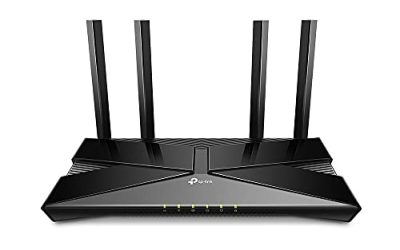
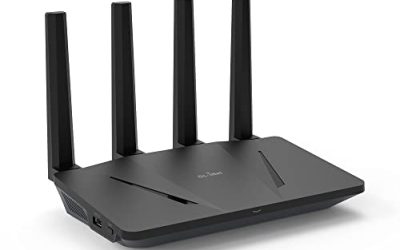
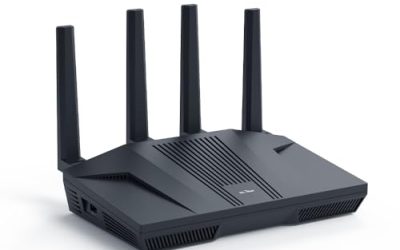
The Archer AX21 is the natural starting point for a home still running a provider-supplied router or an older Wi-Fi 5 model. TP-Link rates it at AX1800, split between up to 1201 Mbps on the 5 GHz band and up to 574 Mbps on the 2.4 GHz band, and those figures are manufacturer ratings rather than promises for any particular room. It carries four external high-gain antennas and beamforming, and the listing highlights OFDMA as the feature that helps it communicate with more devices at once — the exact situation that makes older routers feel tired in a house full of phones and smart gadgets.
On the wired side, the AX21 provides one Gigabit WAN port and four Gigabit LAN ports, which is enough to hard-wire a television, a desktop, and a console near the router while leaving a spare. Security support includes WPA3 alongside earlier WPA standards, and the router can run OpenVPN and PPTP VPN server functions according to the listing, which is a feature many entry models omit. Setup and management run through the TP-Link Tether app, and the listing notes that it works with Alexa voice control.
For home use, the AX21 makes the most sense in an apartment or a small to medium house where the router can sit reasonably centrally and the internet plan sits at or below gigabit speed. Its dual-band design means there is no 6 GHz band, so households already collecting Wi-Fi 6E or Wi-Fi 7 devices and wanting that extra band should look further up this list or at mesh systems built around it. As a first Wi-Fi 6 step, though, it covers the fundamentals — current security, app management, four LAN ports, and mesh expansion support — without paying for capacity a smaller home will not use.
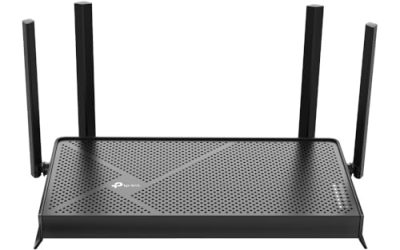
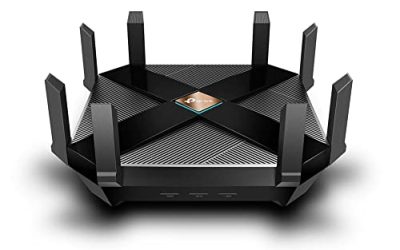
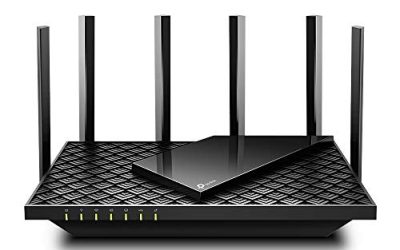
The Archer AX73 is the step up for homes where the AX21’s capacity would be spoken for quickly: several people streaming at once, someone gaming in another room, and a background of downloads and cloud backups. TP-Link rates it at AX5400, with up to 4804 Mbps on the 5 GHz band using 160 MHz channel width and 4T4R structure, plus up to 574 Mbps on 2.4 GHz. Six external antennas, beamforming, and a high-power front-end module are the manufacturer’s stated tools for pushing coverage across a larger single-floor home or a typical two-storey layout from one central unit.
Inside, the listing and the manufacturer’s specification page describe a 1.5 GHz triple-core processor, one Gigabit WAN port, four Gigabit LAN ports with static link aggregation available on two of them, and a USB 3.0 port for sharing storage across the network. TP-Link’s HomeShield service provides the security and parental-control layer, with some features sitting behind a subscription tier, so check which elements are included before counting on a specific control. The AX73 also supports OneMesh, TP-Link’s system for adding compatible extenders or routers into a single network name later, which gives a standalone router an expansion route if one room remains stubborn.
The AX73 suits a household that wants one strong central router rather than a mesh kit, especially where several high-bandwidth activities overlap every evening. It is still dual-band, so it manages crowding through capacity and channel width rather than a third band, and its gigabit WAN port means internet plans faster than gigabit cannot be passed through at full speed to a single wired device. Within a gigabit plan, though, it offers substantially more wireless headroom than the entry class above it.
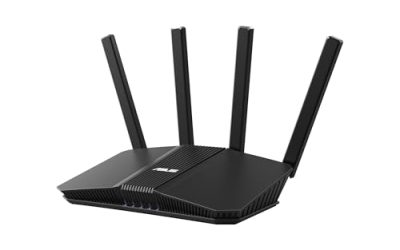
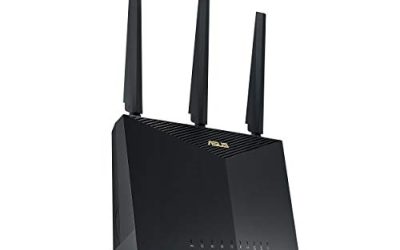
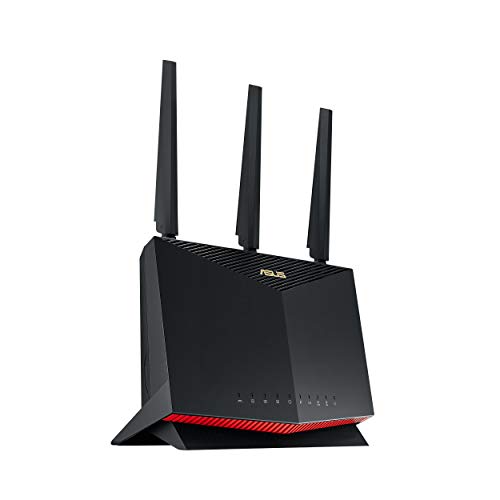
The RT-AX86U Pro is aimed at homes that mix entertainment traffic with gaming and want more control over which traffic goes first. ASUS rates it at AX5700 across its dual bands, and the listing describes a 2.0 GHz quad-core processor with 1 GB of memory, which is the hardware behind its quality-of-service features. Adaptive QoS lets the household prioritise gaming, streaming, or work traffic, and the router includes a dedicated gaming port that automatically gives a connected console or PC priority, plus a mobile game mode intended to reduce lag for phone gaming.
Its wired layout is the distinguishing feature in this group: alongside standard gigabit ports it includes a 2.5 Gbps port, and ASUS states the router supports internet connections up to 2 Gbps, so it is the one model here that does not cap a multi-gig fibre plan at the door. AiMesh compatibility means a second compatible ASUS router can be added later to form a mesh with the same settings, and AiProtection Pro, powered by Trend Micro per the listing, is included without a subscription, together with WPA3 security, VPN support, and parental controls. Management is available through the ASUS Router app or the fuller web interface for those who like detailed settings.
Choose the RT-AX86U Pro if your home includes a gamer, a fast fibre plan, or a work-from-home setup where a video call should never queue behind a game download. It is a single standalone unit, so a large or awkwardly shaped home may still need that AiMesh second node, and its gaming-oriented design language will not blend into every living room. For a performance-focused household on a gigabit-or-faster plan, it is the most capable standalone option in this comparison.
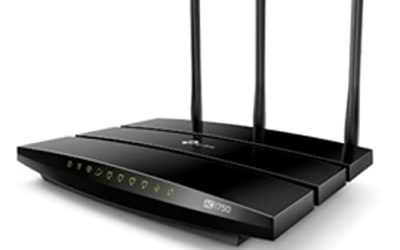
The eero 6+ takes the opposite approach to the ASUS: instead of controls and ports, it sells simplicity. The listing describes a dual-band Wi-Fi 6 mesh router supporting internet plans up to a gigabit, with coverage of up to 1,500 square feet for a single unit and support for more than 75 connected devices. A single eero 6+ works as a standalone home router, and additional eero units can be added to build a mesh that covers a larger or multi-storey home under one network name, with devices handed between units automatically as you move around.
Each unit has two auto-sensing Gigabit Ethernet ports, which can serve as the WAN connection and one wired output, or as two wired outputs on a satellite unit — useful for plugging a television or office desk into a mesh point without running cable across the house. Setup and day-to-day management happen in the eero app, which handles network naming, device lists, and updates with very little manual configuration. The trade-off for that simplicity is depth: there is no USB port for shared storage, advanced manual controls are limited compared with a traditional router interface, and some eero features sit within the optional eero Plus subscription, so confirm which security and content-filtering tools are included before relying on them.
The eero 6+ suits homes that want coverage they can grow one room at a time and an app that a non-technical household member can manage confidently. It is also a sensible pick for renters, because the same units can move to the next home and be rearranged. Households wanting multi-gig ports, extensive manual settings, or wired connections for many devices at the main router should stay with one of the standalone models above.
How to Choose Between Them
Start with your floor plan, not the speed class. A compact apartment or small house with a central router position is well served by a single dual-band unit, and the Archer AX21 covers that scenario with room to spare for typical device counts. A family home where the router must also reach a home office, a teenager’s gaming setup, and the living-room television at the same time benefits from the AX73’s extra streams and wider 5 GHz channel. A home with a multi-gig internet plan or a serious gaming habit justifies the RT-AX86U Pro, because its faster port and traffic prioritisation address bottlenecks the others cannot. A long, split-level, or thick-walled home is the natural case for the eero 6+, where adding a second unit solves a geometry problem that no single router, however powerful, fully can.
Next, count your wired devices. Four LAN ports on the TP-Link and ASUS models make it easy to hard-wire the equipment clustered near the router, which quietly improves reliability for televisions, consoles, and desktop PCs. If most of your equipment is wireless and scattered, the eero’s per-unit ports spread wired access around the house instead. Then check your plan speed: every model here handles gigabit service, but only the ASUS passes faster plans through its multi-gig port. Finally, think about who manages the network. App-first systems reduce friction for most households, while web interfaces reward households that like to tune settings themselves.
Placement and Setup Tips That Matter More Than Model Choice
Even the best home router underperforms in a bad position. Place the router as centrally and as high as the cabling allows, out in the open rather than inside a cabinet or behind a television. Brick, concrete, metal ducting, and large appliances all absorb or reflect signal, so a router at one extreme end of the home will always struggle to reach the other. For mesh systems, place satellite units roughly halfway between the main unit and the weak room, where they still receive a strong signal themselves, rather than in the dead zone they are meant to fix.
During setup, keep the network name and password you already use if your provider allows it on the new router; most smart-home devices will reconnect automatically, saving an evening of re-pairing bulbs, plugs, and cameras. Turn on automatic firmware updates where offered, set a strong administrator password different from the Wi-Fi password, and enable WPA3 if all your devices support it, or the mixed WPA2 and WPA3 mode if older devices refuse to join. A guest network is worth enabling for visitors and for isolating cheap smart devices from the laptops that hold your work and banking.
Common Questions
Do I need a separate modem with these routers? Yes. All four are routers only, so they connect to the modem or optical terminal your provider supplies. If your provider gave you a combined modem-router, you can usually put it in bridge mode or simply connect the new router to it and let the new router run your home network.
Will a new router make my internet plan faster? It cannot exceed the speed your plan provides, but it can remove the local bottlenecks — crowding, weak coverage, and old Wi-Fi standards — that stop devices in your home from reaching the speed you already pay for.
Is mesh always better than one strong router? No. Mesh excels when distance and walls are the problem. In a smaller home, one well-placed standalone router is simpler, offers more ports and settings, and avoids paying for extra units that would sit within a few metres of each other.
How long should a home router last? A Wi-Fi 6 router bought today should remain serviceable for years, since it supports current security standards and the device mix most homes run. Revisit the decision when your plan speed jumps beyond the router’s ports, when Wi-Fi 6E or Wi-Fi 7 devices become the majority in your home, or when security updates stop.
Verdict
For most homes replacing an ageing router, the TP-Link Archer AX73 is the balanced choice: substantial Wi-Fi 6 capacity, six antennas, four LAN ports, and a mesh expansion path in a single unit. Smaller households can save the step up and take the Archer AX21, which covers the same fundamentals at a lower capacity class. Homes with gaming traffic or a faster-than-gigabit plan should look at the ASUS RT-AX86U Pro, and homes whose real problem is shape and distance should choose the eero 6+ and grow coverage unit by unit. Match the router to the house first and the headline speed second, and any of these four will feel like a clear upgrade over the ageing box it replaces.
J
JD's Woodworks Editorial Team
We compare specs, warranty terms, long-term owner feedback and street pricing before anything earns a spot. Rankings are never paid.
Affiliate disclosure. As an Amazon Associate we earn from qualifying purchases at no extra cost to you. Prices accurate as of the date shown.
Find the best wpa 3 routers for safer home Wi-Fi, with Wi-Fi 6 and Wi-Fi 6E models that protect every device on the network for families and small offices.
Compare 4 wireless routers that pair well with Excede satellite internet, from Wi-Fi 7 standalones to a mesh kit for wide rural homes and busy families.
Looking for the best wifi routers 1gb? Compare four gigabit routers for home internet, with Wi-Fi speed, ports, and coverage for each model and every home.
Looking for the best twc modems routers? Compare three modem-router combos approved for Spectrum cable, with DOCSIS, Wi-Fi, and ports explained for every home.
Looking for the best routers with verizon fios? Compare three routers that work with a FiOS connection, with Wi-Fi speed, ports, and coverage for every home.
Compare the best routers for wireless internet at home by band, coverage, device handling and mesh options, using only the specs stated on each Amazon listing.
Compare the best routers for security by VPN support, named protection services, guest networks and update handling, taken from the wording of each Amazon listing.
Compare the best routers for schools and classrooms by device capacity, mesh expansion, central app management and content controls named on each Amazon listing.
Compare the best routers for a homelab by VLAN support, multi-gig wired ports, VPN throughput and expansion options, with specs taken from each Amazon listing.

 TP-Link Archer AX21 (AX1800)
 TP-Link Archer AX73 (AX5400)
 ASUS RT-AX86U Pro (AX5700)
 Amazon eero 6+